
November 18, 2026
10 Mods for Stellar Blade
A Selection of Mods for Stellar Blade
Read More
18 ноября 2026 г.
Stellar Blade on PC offers more than flashy combat and dozens of outfits for Eve—it also lets you tailor the game to your preferences. Tired of spending so much time fishing? You can speed it up. Want tougher battles? There's a mod that removes Eve's shield. And if you feel the post-apocalyptic world could use CJ from GTA: San Andreas, modders have that covered too.
In this roundup, we'll look at 10 mods for Stellar Blade: what they do, where to download them, and how to install them. After the list, we'll cover mod compatibility and safety.
Stellar Optimizer comes in handy if Stellar Blade occasionally stutters but otherwise runs smoothly. The mod adjusts shader compilation and asset loading settings to reduce microstuttering without lowering graphics quality.
Microstuttering and low FPS are different problems, though. With microstuttering, the game briefly freezes even when the frame counter shows a high frame rate. With low FPS, the frame rate is consistently too low for smooth motion. Stellar Optimizer primarily targets brief freezes: FPS may also improve, but this isn't guaranteed. Results depend on your PC.
To install it, open the game folder and navigate to SB → Content → Paks. Create a folder named ~mods there (the ~ at the beginning of the name is required!) and place the .pak file from the downloaded archive inside it.
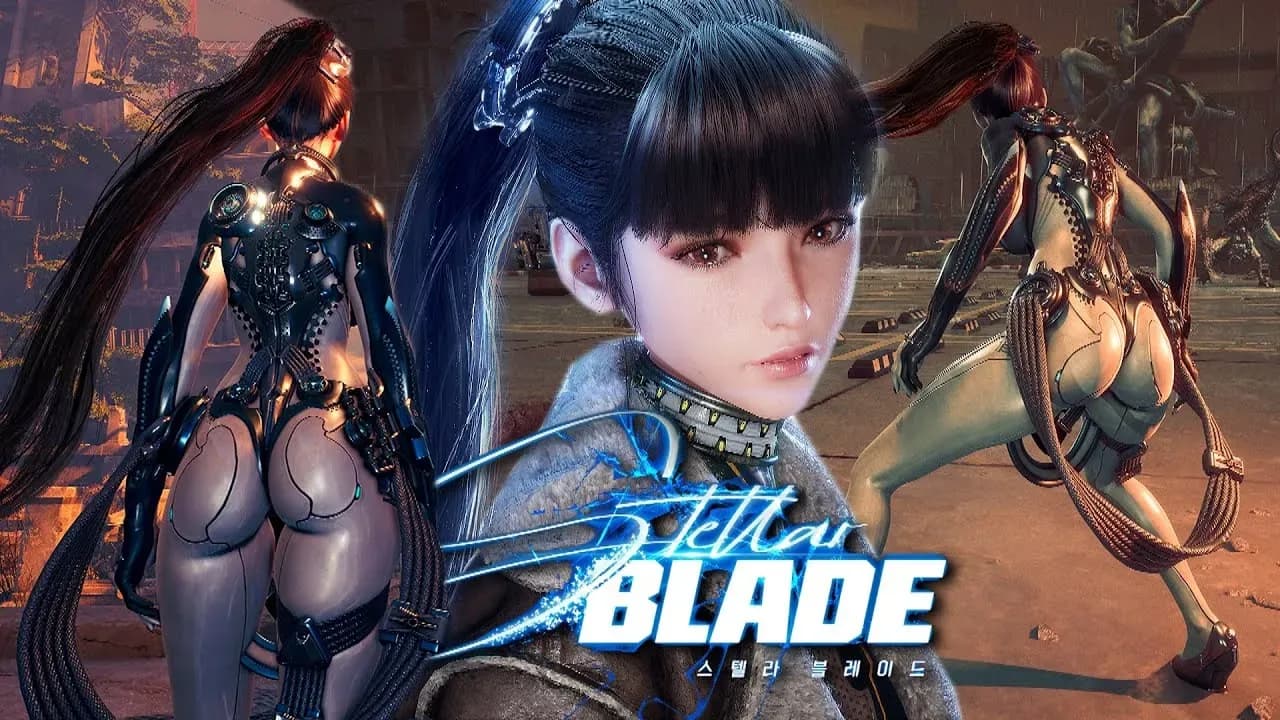
Enhanced Stellar Visuals removes vignetting (darkening around the edges of the screen) and chromatic aberration (colored fringes along the edges of objects). If you dislike these effects, the mod lets you get rid of them without replacing textures or models.
It also slightly increases object draw distance and the level of detail of distant models and environments. So it does more than disable two effects: distant objects will look different too.
Open the game folder, navigate to SB → Content → Paks → ~mods, and place the .pak file from the archive there. If the ~mods folder doesn't exist yet, create it: the ~ at the beginning of the name is required.

If you enjoy fishing but each attempt feels too long, Faster Fishing helps cut down the wait. The mod makes fish tire out faster: they stop resisting sooner, allowing you to reel them in earlier. You can choose between 2x, 4x, and 10x speed.
The mini-game itself remains intact. You still need to hook and reel in the fish—the struggle simply takes less time. Don't expect instant bites or more frequent appearances of rare species: that's not what this mod does.
Choose one version—2x, 4x, or 10x—and extract it into SB → Content → Paks → ~mods inside the game folder.
Do not install multiple versions at the same time!
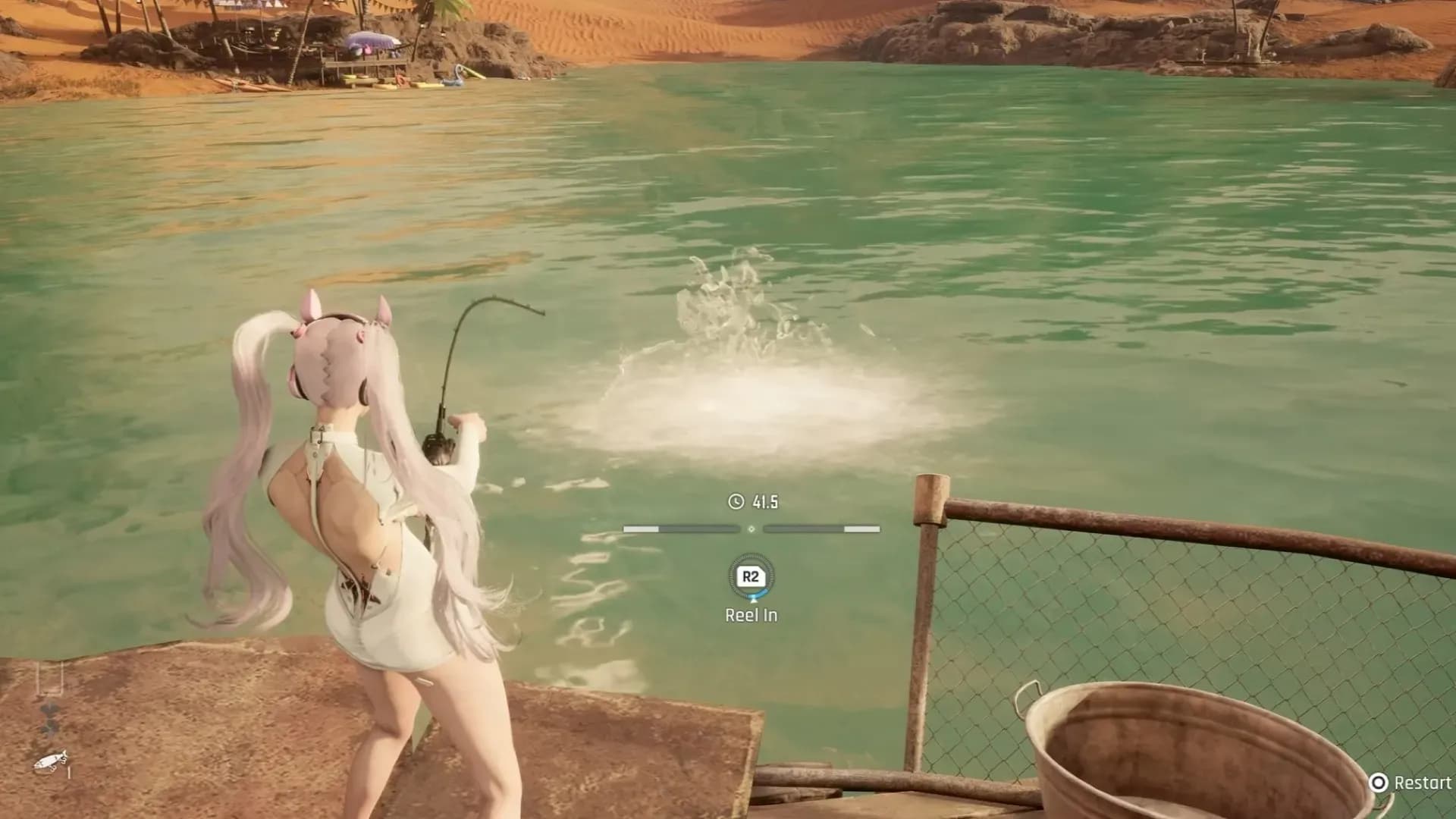
Easy Fishing is for players who are more interested in collecting their catch than fighting every fish. The mod reduces fish stamina to 10 points—compared to 800 for even a small fish in the base game.
It also gives you 100 seconds to reel in your catch. As a result, fish barely resist, and you have much more time to catch them. This is a more drastic simplification than the speed boost in Faster Fishing: here, fish resistance is reduced to a minimum.
Extract the files into SB → Content → Paks → ~mods inside the game folder. Installing directly into Paks is also supported, but keeping mods in a separate folder is more convenient.
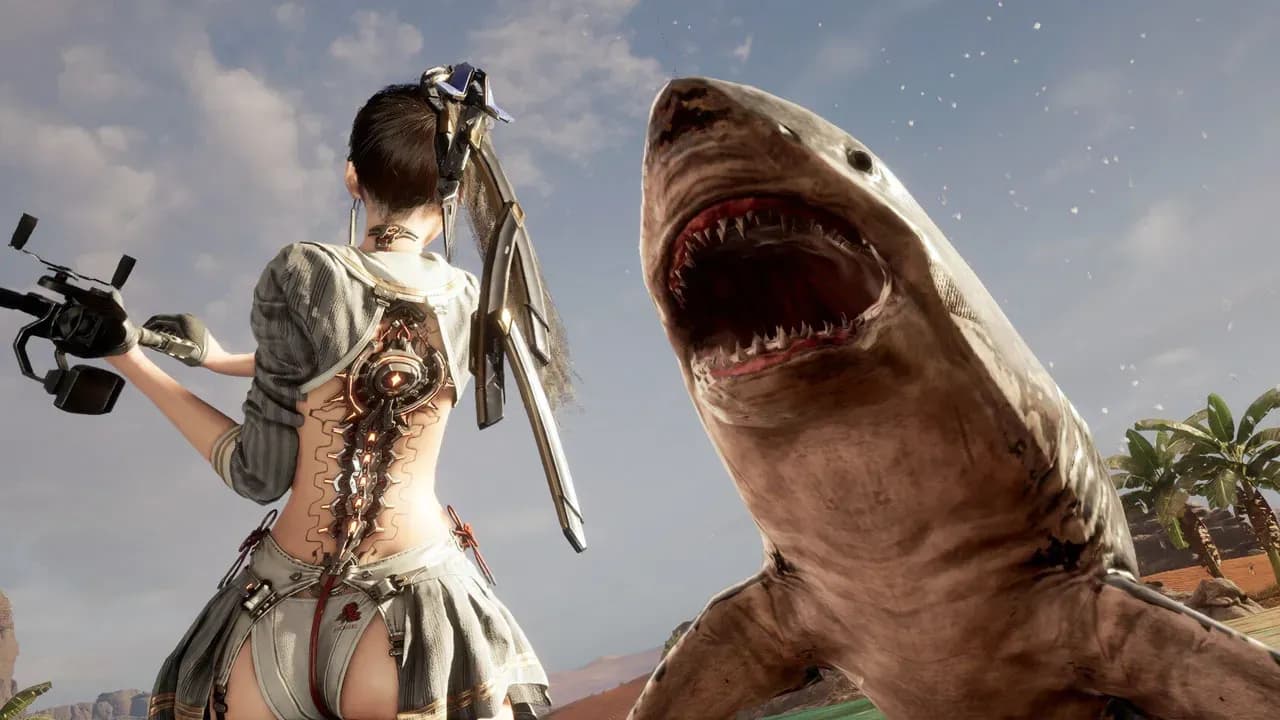
If familiar enemies no longer keep you on your toes, Hardcore Mode changes the rules in their favor. It disables Eve's shield and locks the parry and dodge windows to their base values. These windows are the periods during which you need to press the button to successfully perform a defensive action.
There are also versions that disable Blink and Repulse. Before downloading, check which restrictions the selected file includes: you can give up just some of your usual advantages or choose a tougher set of changes.
Extract the associated .pak, .utoc, and .ucas files from the archive and move the complete set into SB → Content → Paks → ~mods.
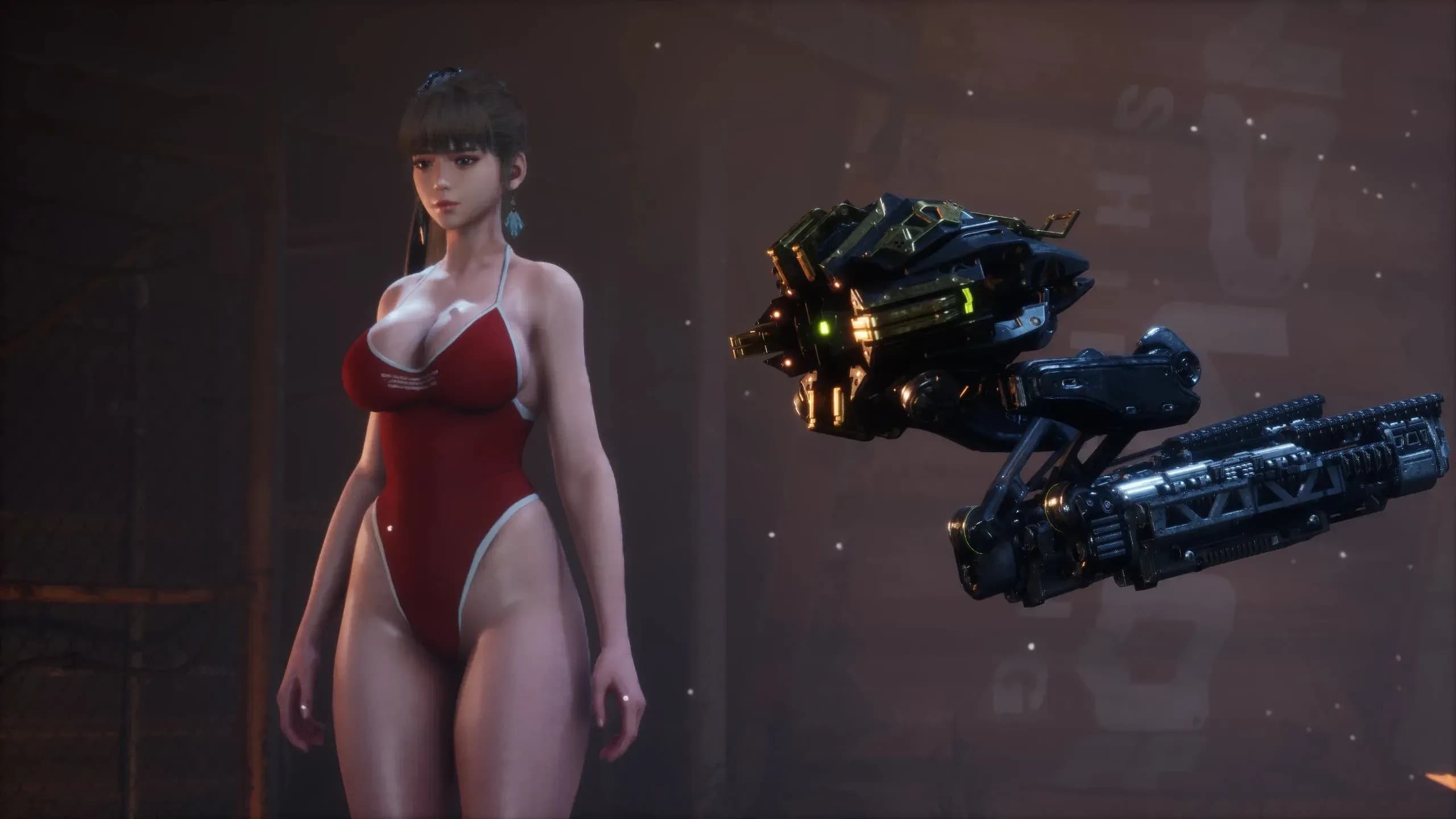
AIO Combat Tweaks combines several changes in one mod. These include increased ammo and consumable capacities, health recovery through attacks, faster shield regeneration, and faster fishing. Instead of installing individual tweaks, you can choose a ready-made package.
The variants offer different features:
All of this makes the game noticeably easier. If you want to preserve the original balance and eliminate just one inconvenience, a whole package of changes may be unnecessary. However, for a playthrough without constant resource management, it is a better fit than individual minor tweaks. It's also important to remember that you cannot use multiple variants at the same time because they conflict with one another.
Choose one variant and extract it into SB → Content → Paks → ~mods.
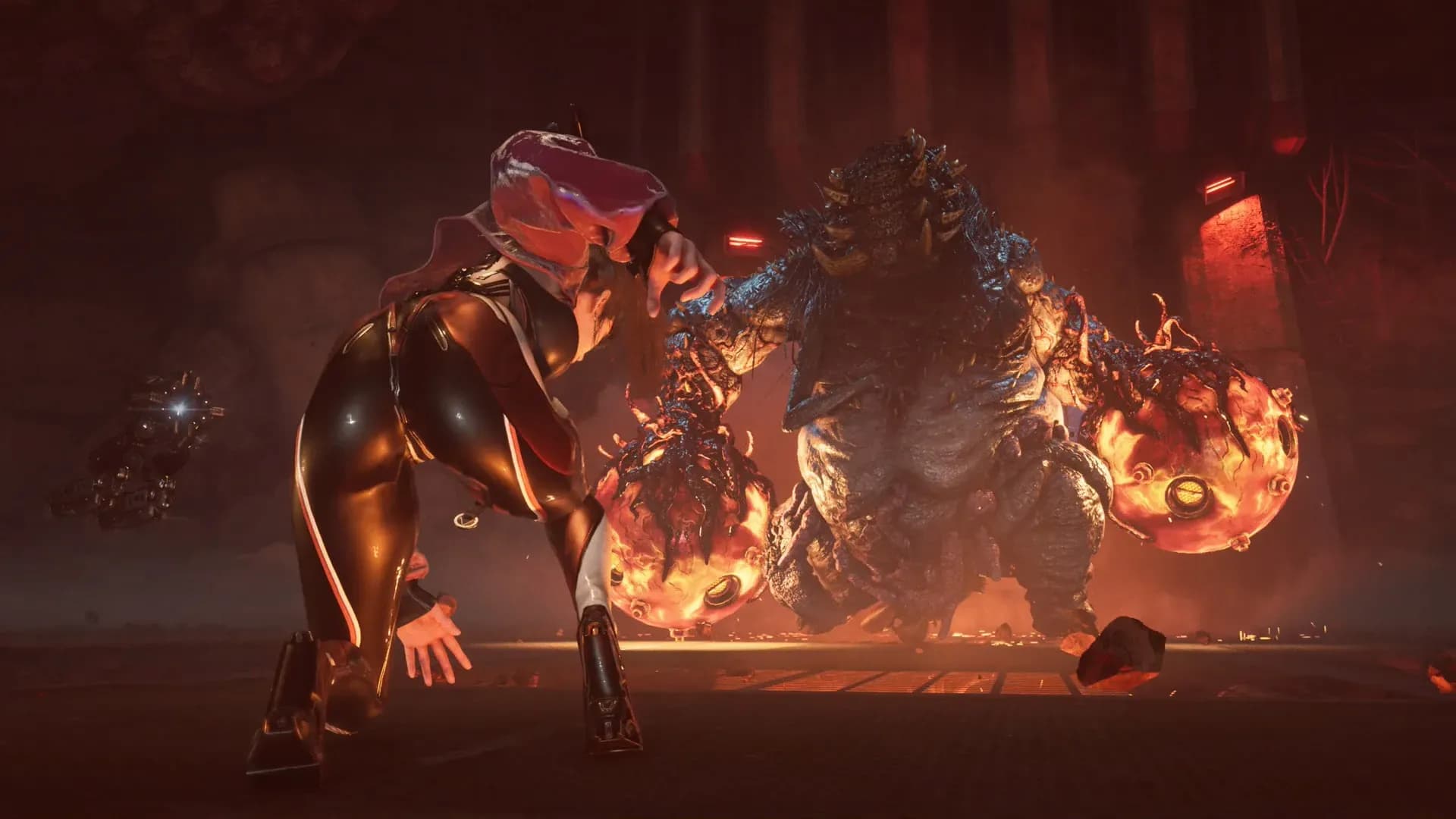
“Shit, here we go again!” It seems that sooner or later, CJ turns up in every game modders get their hands on. Stellar Blade is no exception: this mod replaces Eve with Carl Johnson from GTA: San Andreas.
This is a character replacement, not a port of GTA into another game. Still, familiar scenes take on a very different mood with CJ in them. It's just the thing for a repeat playthrough where taking the story seriously is no longer a priority.
Choose the version you want and extract the files into SB → Content → Paks → ~mods inside the game folder.

This mod brings the Ines Summer Paradise look from The First Descendant to Stellar Blade. The standard version replaces the Planet Diving Suit (7th): to see the new outfit, you need to select that suit.
There is also a version for Custom Nanosuit System, or CNS—a system for managing custom outfits. If you don't use it and simply want to replace an outfit, choose the standard version: you won't need to install any additional CNS components.
For the standard version, simply extract the files into SB → Content → Paks → ~mods.
The CNS version has a different installation process. First, install UE4SS for Stellar Blade and Custom Nanosuit System. Place the UE4SS files in SB → Binaries → Win64 and the CNS components in the SB directory, preserving the folder structure. Then install the corresponding version of the outfit. Press N to open the CNS menu.
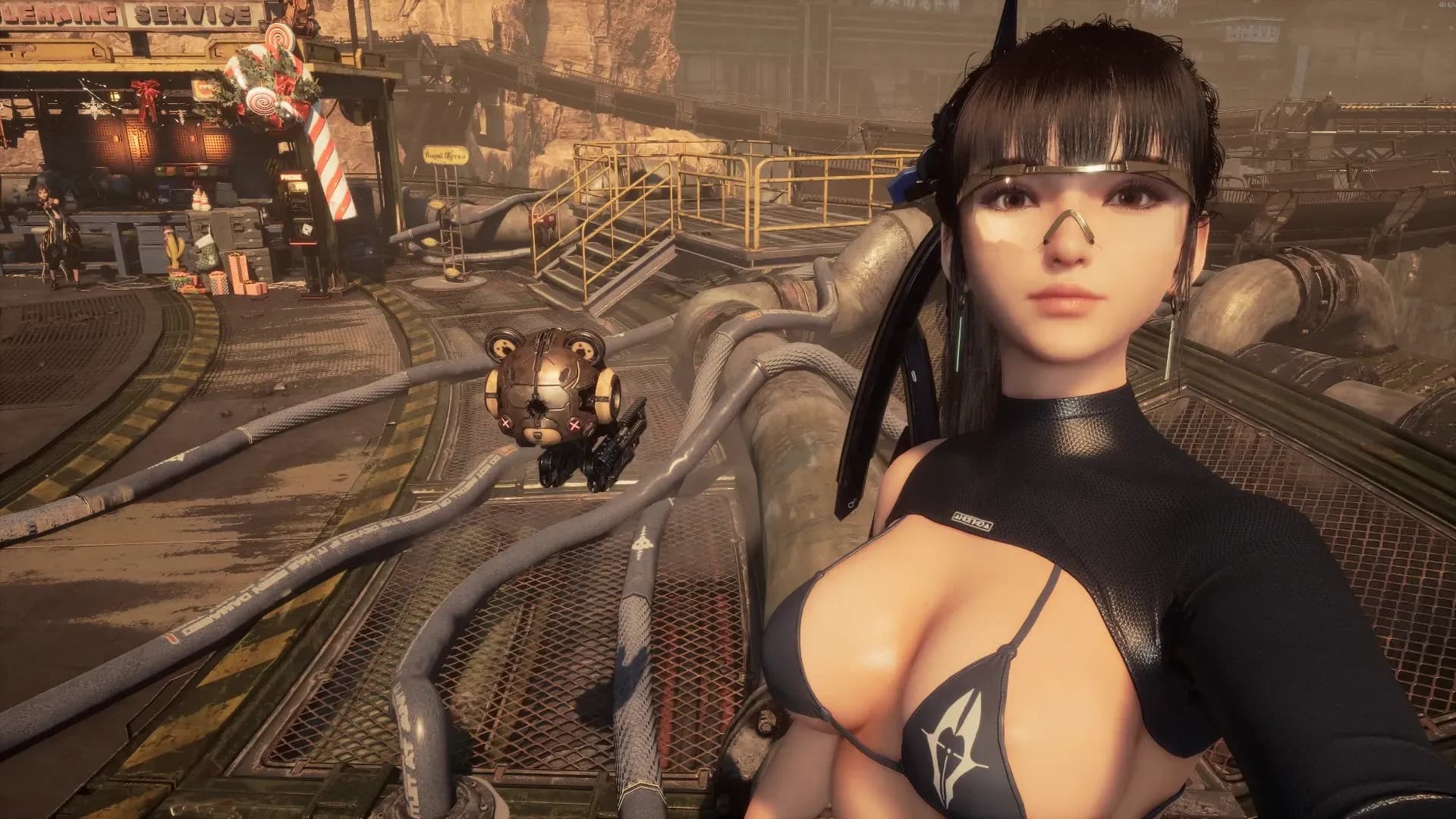
If your PC struggles to run Stellar Blade and you're willing to sacrifice visuals for performance, you can try this config—a file containing modified game settings. Image quality is deliberately reduced to put less strain on your PC.
This sets the project apart from Stellar Optimizer: while that mod primarily tackles microstuttering, potato edititon is designed for low-end hardware. How noticeable the difference will be depends on your PC. Don't expect the same FPS boost across different systems.
Before installing, back up your Engine.ini file so you can restore your previous settings if needed.
Then press Win + R and paste this path:
%LOCALAPPDATA%\SB\Saved\Config\WindowsNoEditor
and press Enter.
Place the downloaded configuration file in the folder that opens. Unlike most mods in this roundup, this project is not installed in ~mods.
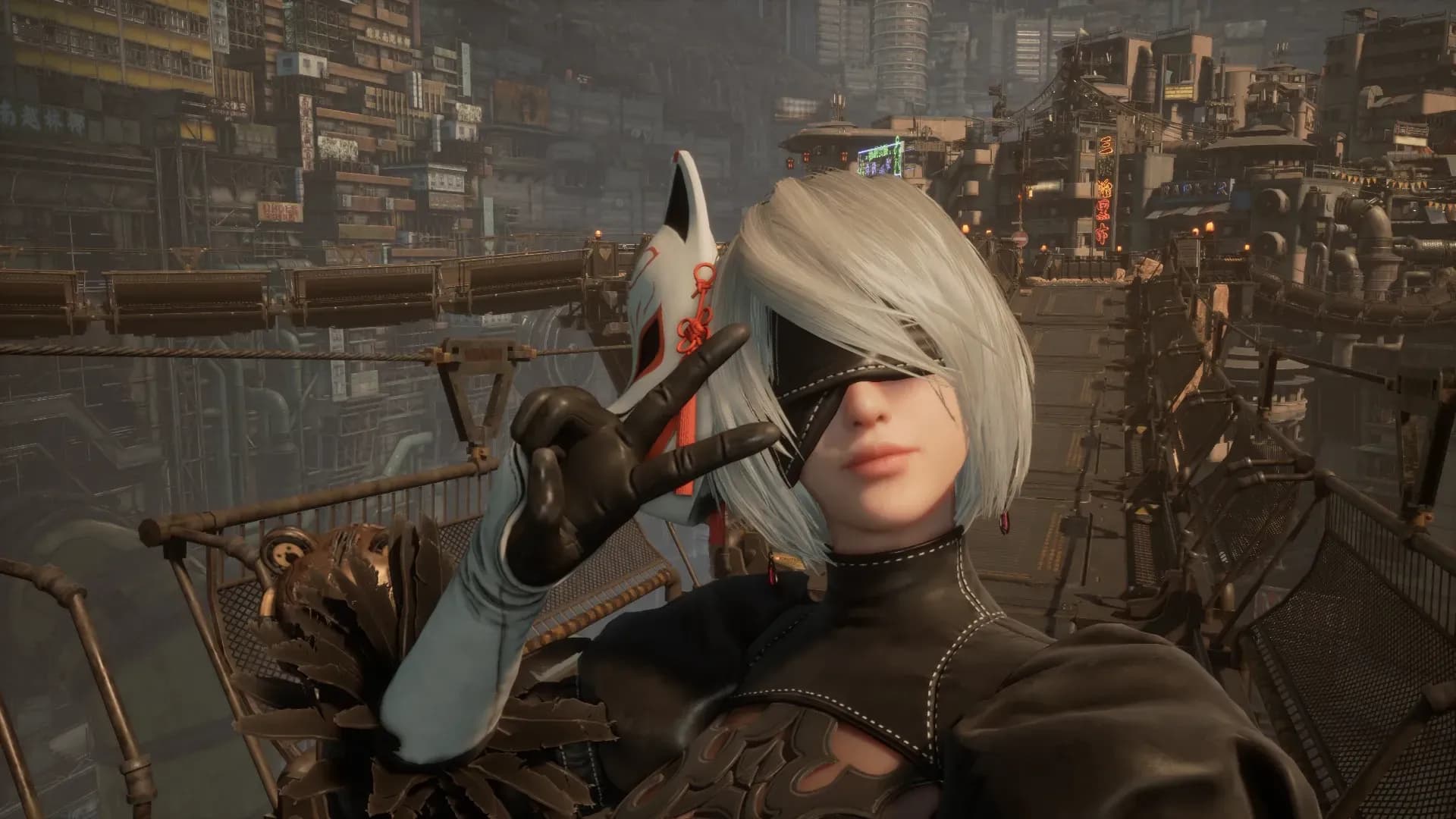
Once you have several mods, it's easy to forget which files are already in the game folder. Simple Stellar Blade Mod Manager lets you enable and disable them through a separate window, as well as extract .zip, .rar, and .7z archives.
The program stores mods in a separate library. When you enable a mod, it copies the required files into the game's ~mods folder; when you disable it, it removes them from that folder. The originals remain in the library, so you don't need to download everything again.
On first launch, specify two locations: the ~mods folder inside the game folder and a separate folder where you'll store inactive mods. Then click Refresh to update the list.
The manager works with files in ~mods. Replacing Engine.ini or installing UE4SS and CNS still requires separate instructions.
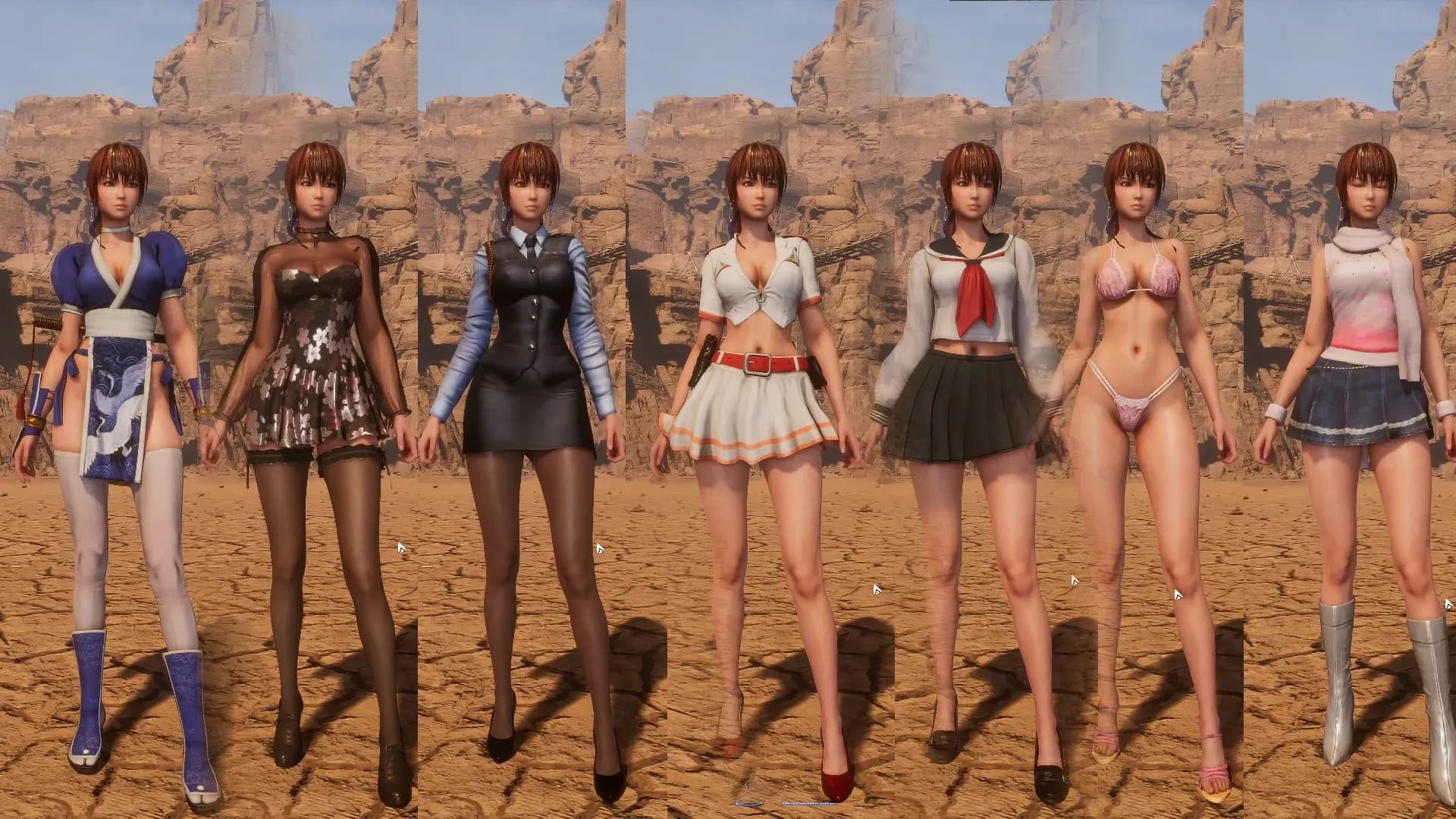
Not all mods in this roundup can be combined in a single playthrough. If two projects modify the same game file, one change may override the other. It's therefore best to choose your setup in advance rather than copy everything into the game folder.
These mods are compatible. One adjusts how the game runs, while the other changes the visuals, so there is no conflict.
Choose one or the other. Both mods modify CharacterTable.uasset—a table containing character parameters—so they cannot be installed together.
Besides, faster fishing is already included in AIO Combat Tweaks. If you choose that package, you don't need Faster Fishing separately.
Hardcore Mode may conflict with mods that modify the AcquisitionSkillTable, CharacterTable, and SkillTable tables. The specific files affected depend on the variant you choose.
This also applies to combining it with AIO Combat Tweaks or Faster Fishing: the data they modify may overlap. Before installing them together, check which files your chosen version of Hardcore Mode affects.
Easy Fishing modifies ItemFishTable.uasset—a file containing fish parameters. Any other mod that edits the same table will conflict with it.
Faster Fishing modifies a different file, but compatibility between the two projects has not been confirmed through testing. It's simpler to choose one: Faster Fishing shortens the struggle, while Easy Fishing almost eliminates fish resistance.
AIO Combat Tweaks can be used alongside outfit, visual, and interface mods. However, any additional components required by those visual mods are still necessary: for example, the CNS version of an outfit will not work without the system itself installed.
Most mods in this roundup use the same folder:
...\StellarBlade\SB\Content\Paks\~mods
To find it, open your Steam library, right-click Stellar Blade, and select “Manage → Browse local files.” Then navigate to SB → Content → Paks. If the ~mods folder doesn't exist, create it—the ~ at the beginning of the name is required.
Close the game before copying any files. If the archive contains a matching set of .pak, .utoc, and .ucas files, transfer the entire set. For potato edititon and the CNS version of the outfit, follow the separate instructions above.
Yes, mods can be installed on the official Steam version of Stellar Blade. You don't need a pirated copy: the game files are located in the standard Steam installation directory.
However, working with an official copy does not mean the mods are supported by Stellar Blade's developers. Some mods may stop working after updates. Before downloading, check the system requirements and whether the mod version you choose is compatible with your game build. It's also useful to consider when the mod was last updated and read user feedback.
There is no reason to expect a VAC ban for the local modifications listed here for the single-player game Stellar Blade. VAC is concerned with detecting cheats when connecting to protected servers, not with every file modification in every game in your Steam library.
However, different rules apply to online games. If a mod or loader interferes with how a game runs, its anti-cheat system may treat it as a cheat and issue a ban.
All the mods listed here are our subjective picks. If none of them appeal to you, or you've already installed everything that interests you, you can explore other mods and try tailoring the game to your preferences. After all, the most important thing is to enjoy the game!

Please follow Gamer’s Galaxy on Telegram to receive exclusive offers and the latest gaming news.
A Selection of Mods for Stellar Blade
Read More
Wand (WeMod) Patcher for Unlocking PRO Features by k1tbyte [2.1.1.0]
Read More
Steam Gifts are now available on Gamers Galaxy! Discover how regional Steam pricing can help you save up to 50–80% on selected games
Read More
Subscribe to our newsletter and receive exclusive offers!

