Offline Launch Instructions for Games via Steam and Ubisoft Connect
Please follow the instructions carefully!
After completing your purchase, go to your personal account. In the "Purchases" section, you will see your account details.
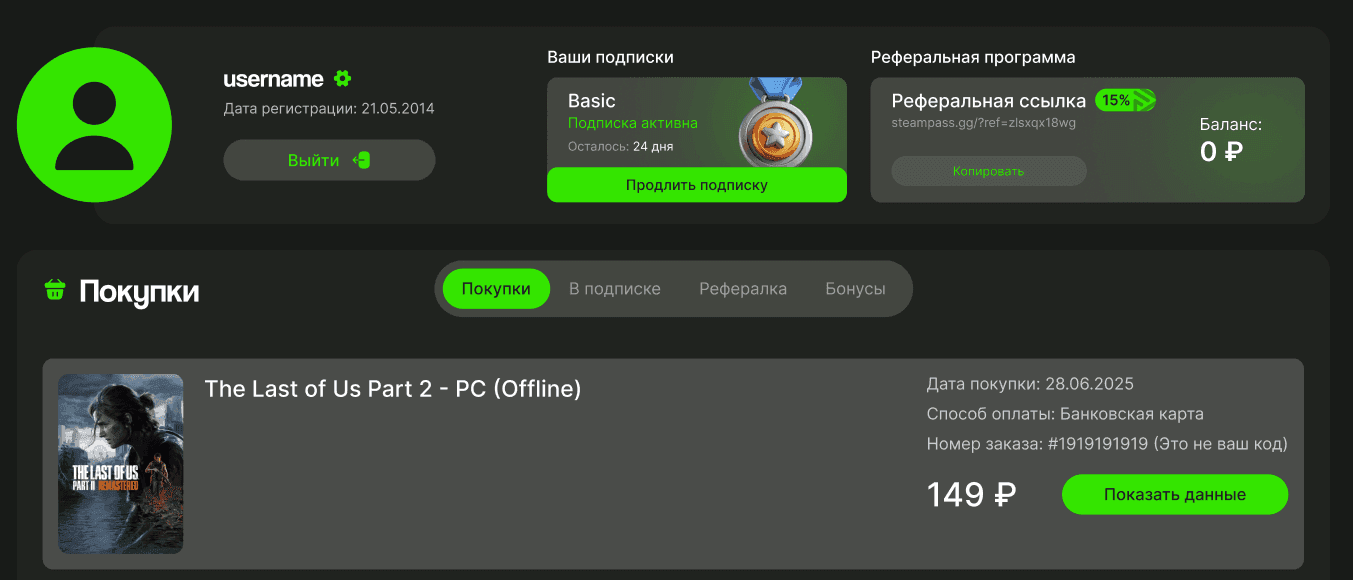
Attention!
Access to the account is permitted exclusively through the official Steam client on PC or Steam Deck.
Logging in via a web browser or a mobile device, as well as any attempts to change the account credentials, are strictly prohibited and will result in access being blocked.
FunPay prohibits sharing contacts, and you may be banned for it. However, for your convenience, you can get the Ubisoft code in the future via Telegram: [https://t.me/Gamers_Galaxyy](https://t.me/Gamers_Galaxyy)
Actions before activation
✔️ Before installing, update the drivers for your graphics card (this fixes most game launch errors).
✔️ Disable automatic Windows 10 updates. This can be done via "Services".
Step-by-step guide:
✅ 1. Open Steam
If you were given a Steam account along with your Ubisoft Connect account, it means the game was purchased on it. First, you need to sign in to Steam and install the game.
Install the Steam application on Windows if it is not already installed.
More about Steam activation: https://gamers-galaxy.com/ru/инструкции/steam-offline-instruction-ru1/
✅ 2. Sign in to Steam
Use the login and password you received after your purchase. Check "Remember me".
❗If Steam asks for a one-time Steam Guard code when you sign in, you can get it in your personal account: open the game you purchased and click the "Get code" button.
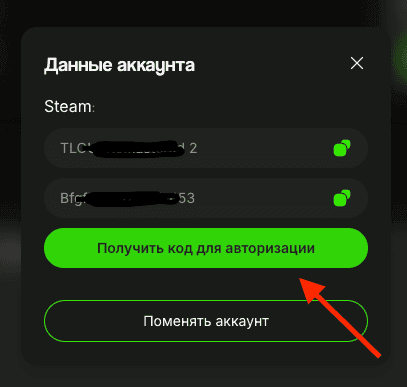
✅ 3 - Disable Remote Play (Optional).
If this option is not available in the settings, click "Request Access" and proceed to the next step. You can return and disable Remote Play later.
✅ 4 - Install the game.
Find the game in your Library and start the installation.
✅ 5 - Download Ubisoft Connect from the official website if you don't have it yet
✅ 6 - Launch the game via Steam and sign in to Ubisoft Connect
After launching, you will be asked to sign in to Ubisoft Connect. Sign in using your account credentials (you can find them in your personal account by clicking "Show credentials").
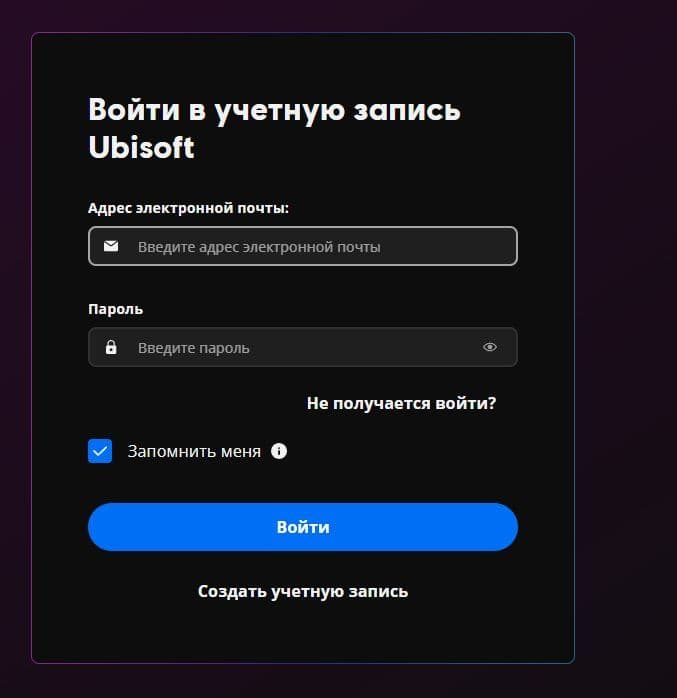
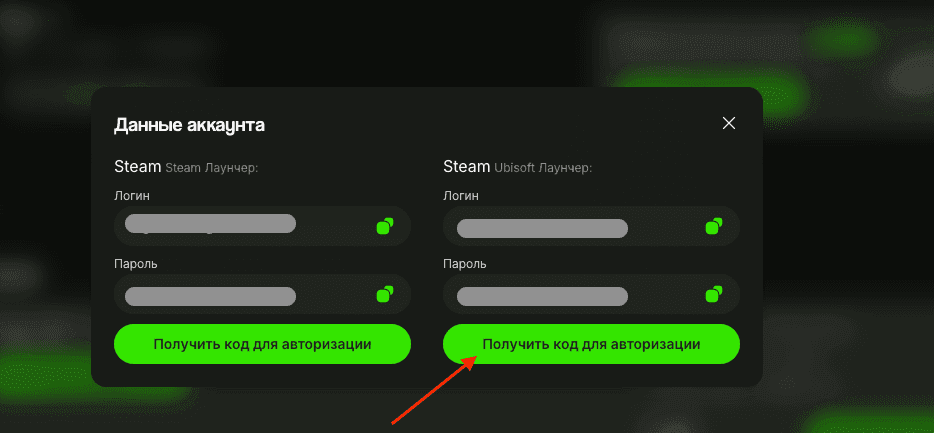
✅ 7 - When signing in to Ubisoft Connect, you will need to enter a one-time code, which you can get in your personal account on gamers-galaxy.com
- Log in to your Personal Account on the website.
- In the Purchases section, click "Show details" for the game you need.
- Under the login details, click the "Get authorization code" button.
- Copy the code and paste it into the launcher window.
❗If you see the error "You are disconnected from the system", wait a little.
⚠️ When signing in, we recommend selecting "Remember me" and, when prompted next, "Trust this device". If you see a message that the maximum number of trusted devices has been reached, clear this option and continue signing in without it.
✅ 8 - Configure Ubisoft Connect:
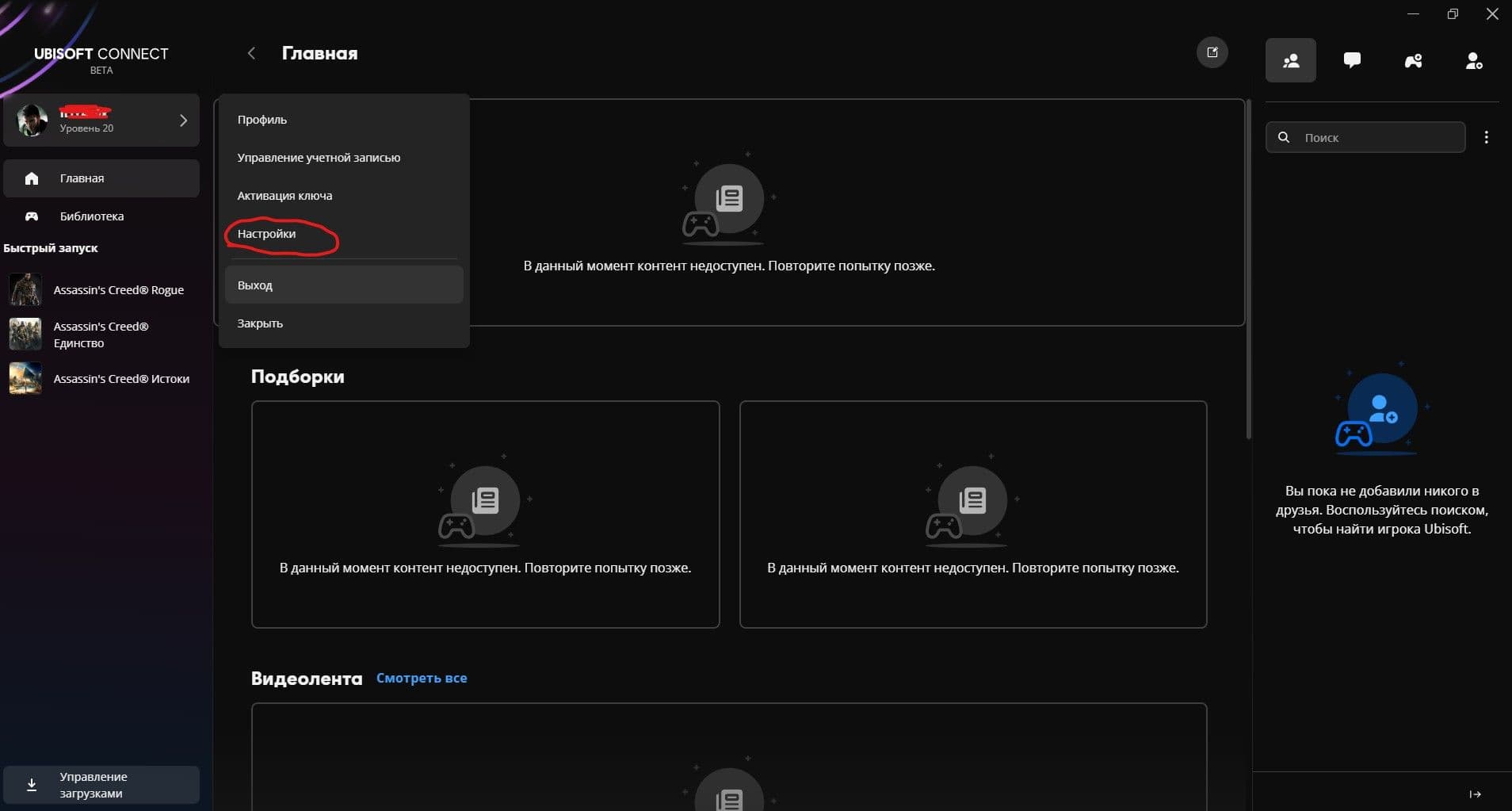
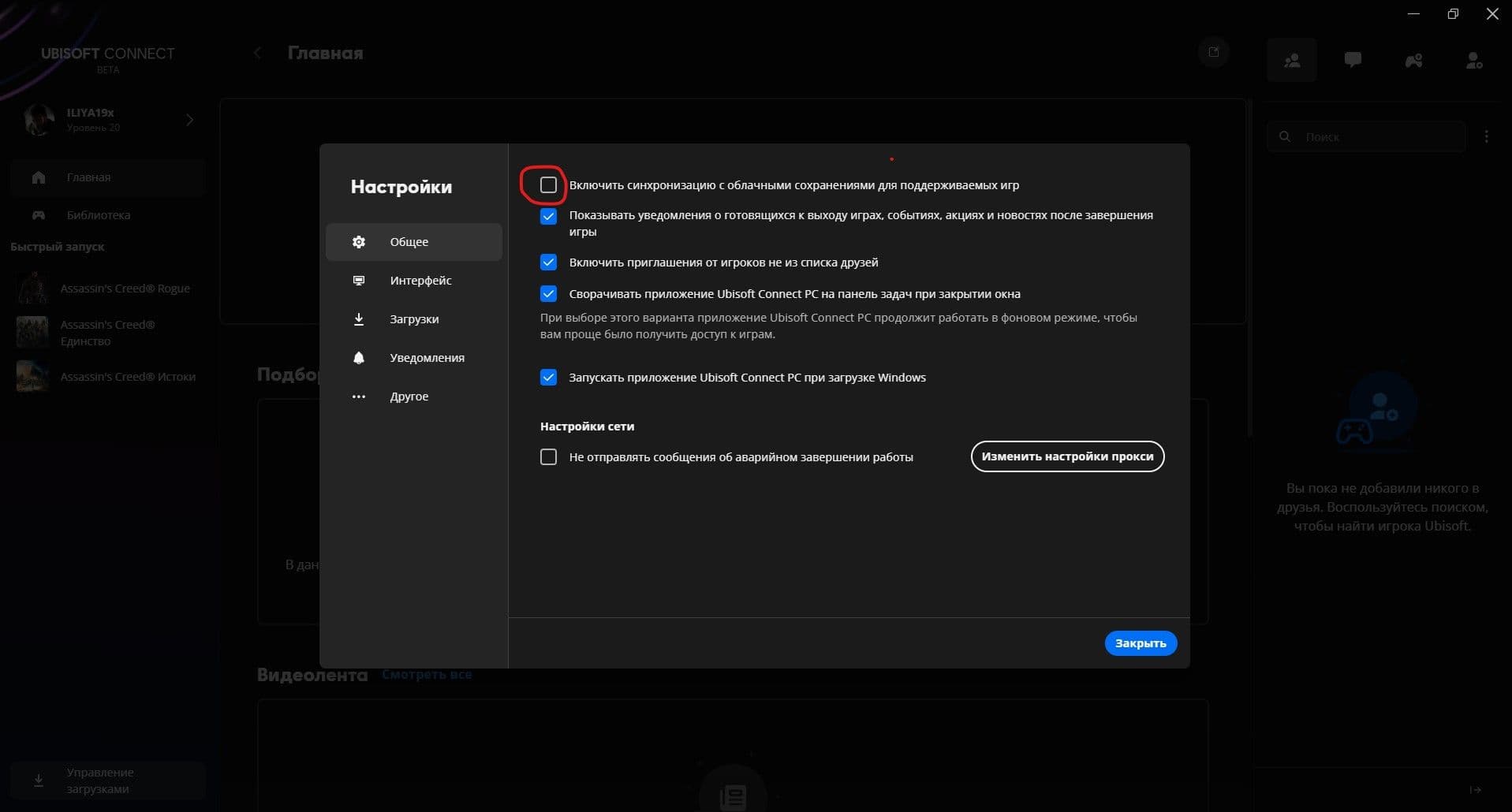
Go to "Settings" and set everything as shown in the screenshots. Be sure to disable cloud save synchronization, otherwise you will lose your saves.
✅ 9 - Launch the game online until the main menu
Launch the game via Steam. This is required so that the activation process takes place on your device. ❗Wait for the main menu to appear; after that, you can exit the game.
✅ 10 - Switch Steam to offline mode
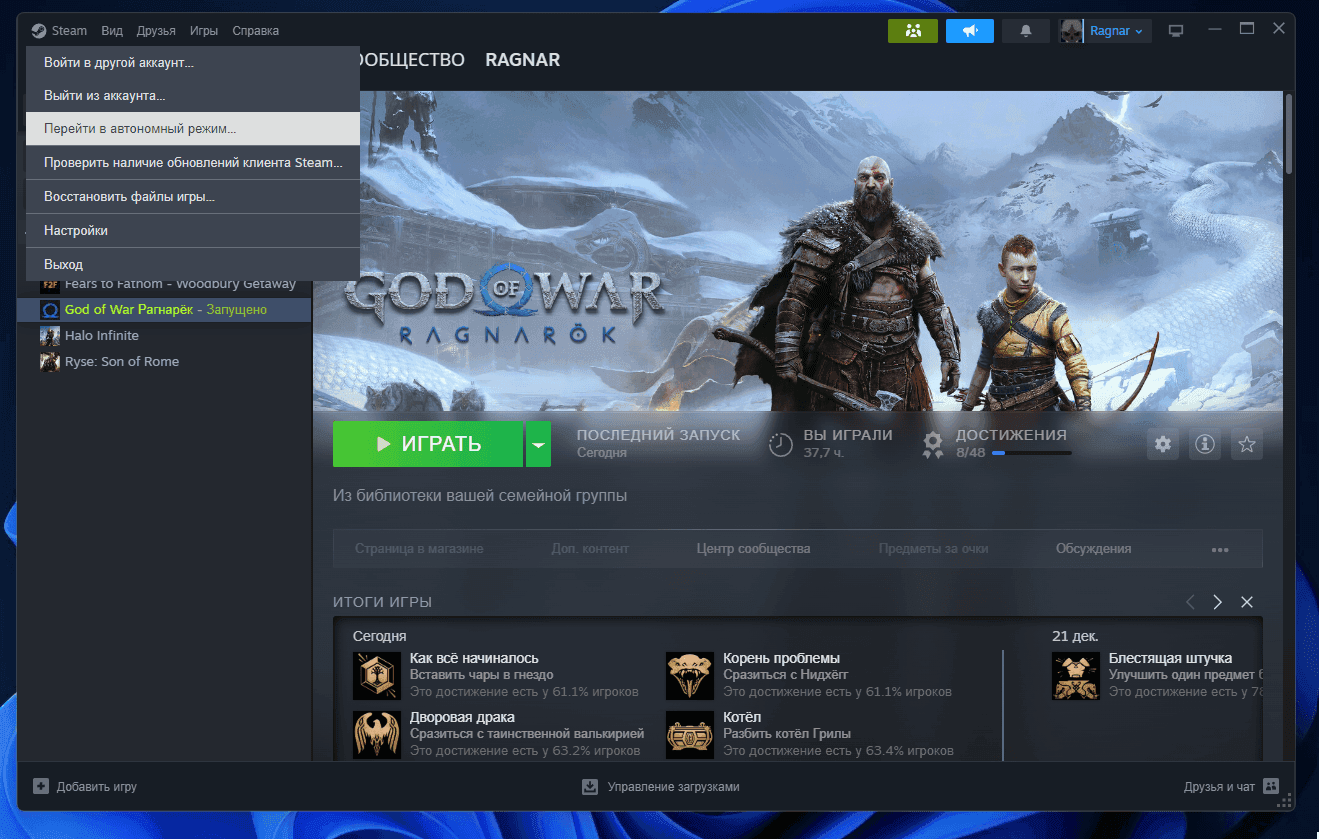
After the first launch, switch Steam to offline mode and leave it that way permanently. Minimize the Steam window.
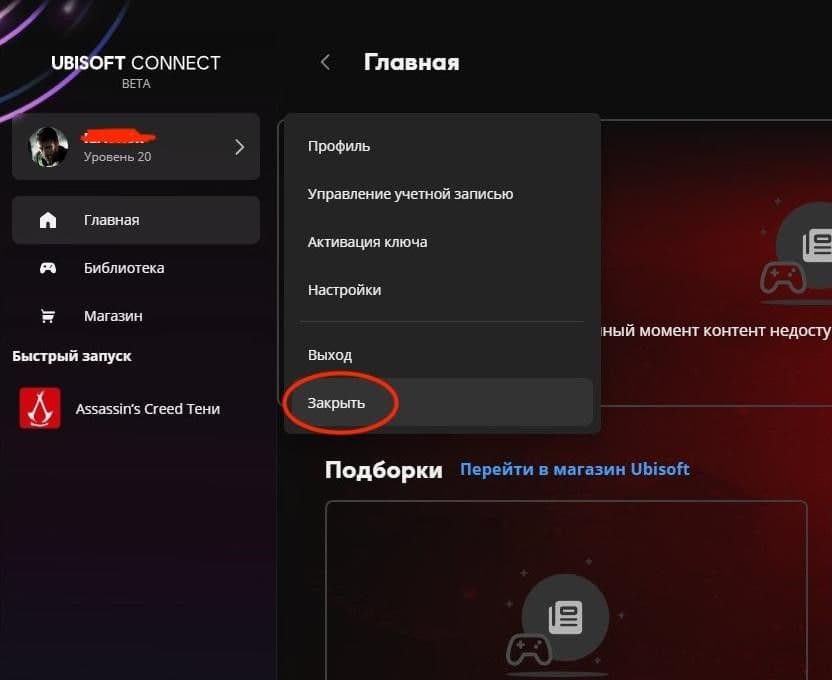
❗The Ubisoft launcher must be closed, not signed out of (that is, do not log out).
✅ 11 - Set Ubisoft Connect to offline mode
- Press the Windows + R key combination.
- Type %localappdata% and press Enter.
- Open the Ubisoft Game Launcher folder.
- Open the settings.yaml file with Notepad.
- Use search to find the word offline and change the value from False to True. Save the document.
- Right-click the settings.yaml file, select "Properties", and check the corresponding box (see photo).
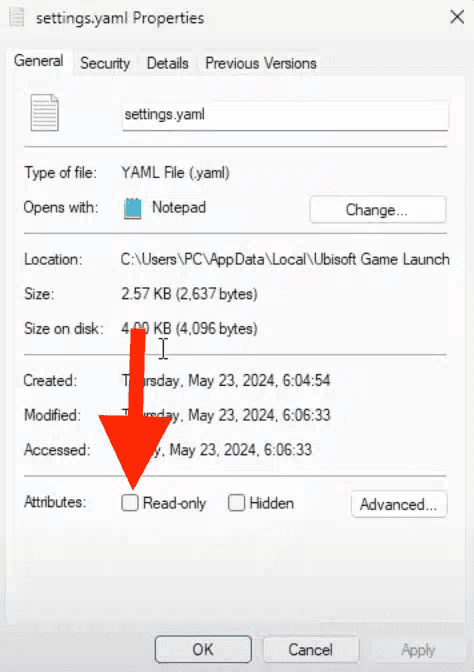
You are now in offline mode. To go back online, change True to False and save the changes. Note: Offline Mode: True – offline, False – online.
✅ 12 - Block Ubisoft Connect via the firewall 🛡️
Because Ubisoft is making its launcher more complex and removing weak points, you additionally need to block Ubisoft Connect through the firewall.
12.1 - Launch Ubisoft Connect and minimize the window (do not close it, just minimize it).
12.2 - Next, open the firewall and block the processes as described below.
You can use Windows Firewall for this. Find the following Ubisoft Connect executable files:
- UbisoftConnect.exe
- uplaywebcore.exe
- upc.exe
The file path usually looks like this: C:\Program Files (x86)\Ubisoft\Ubisoft Game Launcher\UbisoftConnect.exe
12.3 - Block them for outbound connections.
How to open the firewall?
Open Windows Firewall. Find "Windows Defender Firewall" in the Start menu and launch it.
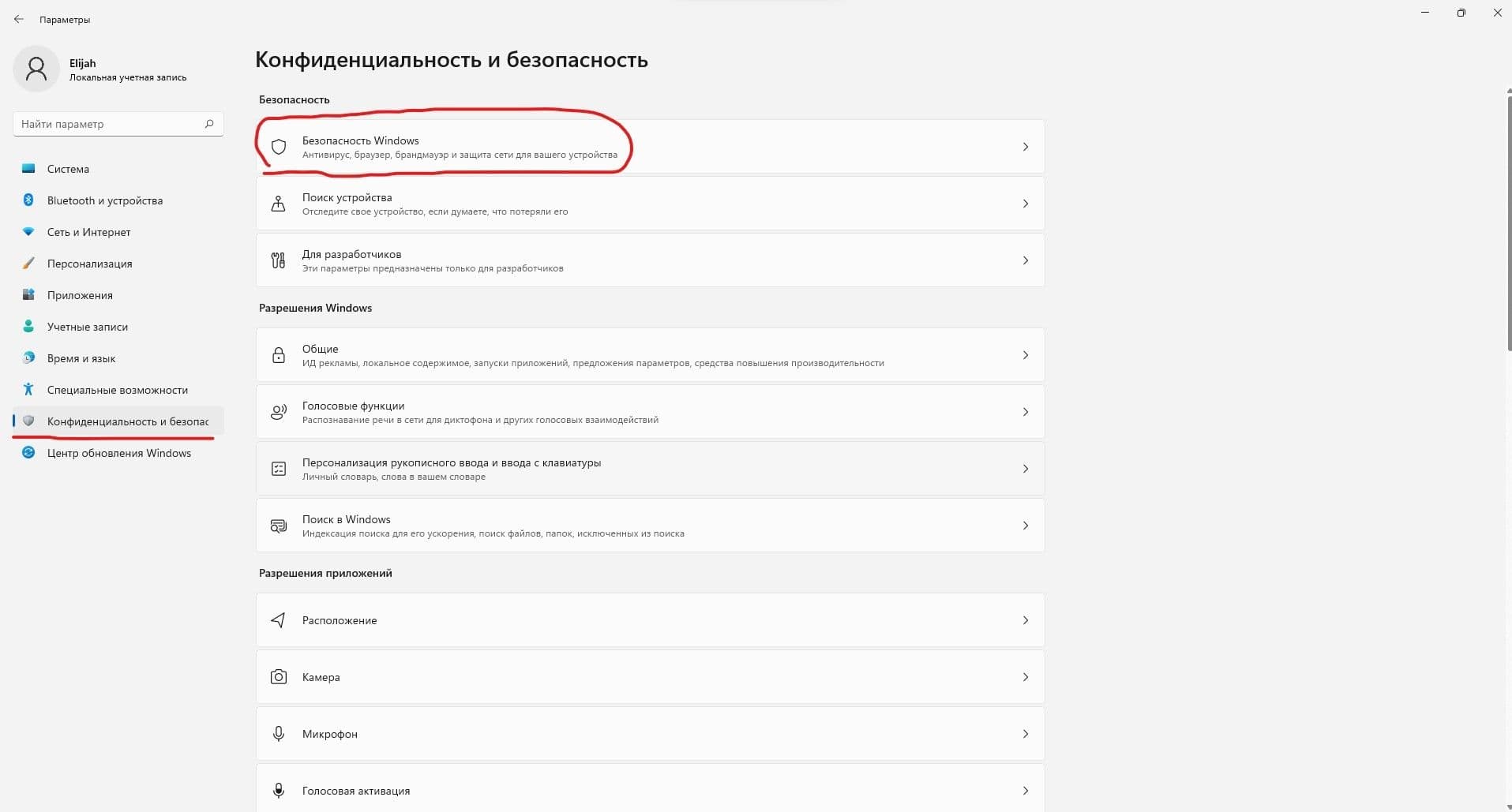
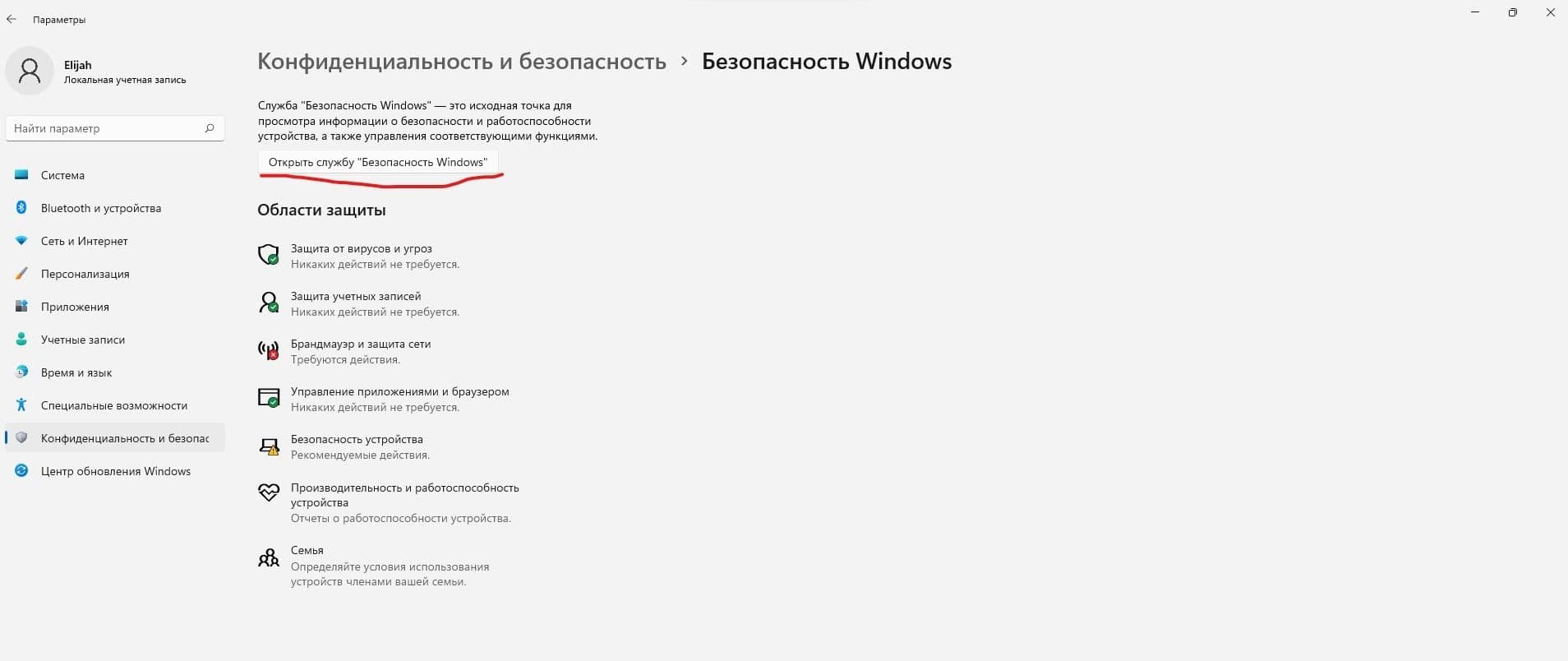
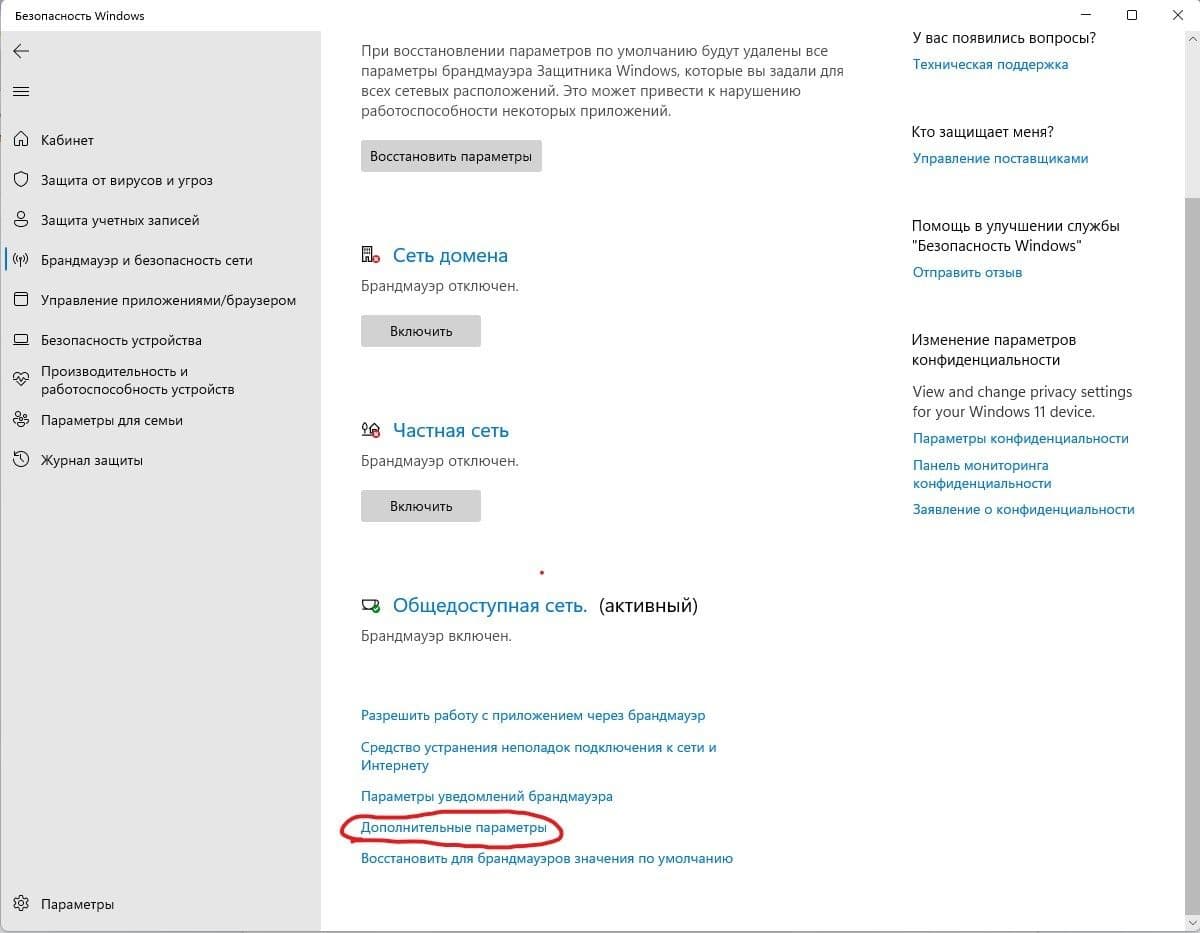
- Select "Advanced settings". In the left part of the window, select "Advanced settings".
-
Create a rule for outbound connections. In the new window, select "Outbound Rules" and click "New Rule".
-
Select "Program". In the New Rule Wizard, choose the "Program" rule type and click "Next".
-
Specify the path to the executable file. Click "Browse" and find the UbisoftConnect.exe executable you located in the first step. Don't forget to do the same for uplaywebcore.exe and upc.exe.
- Select "Block the connection". Specify that the rule should block the connection.
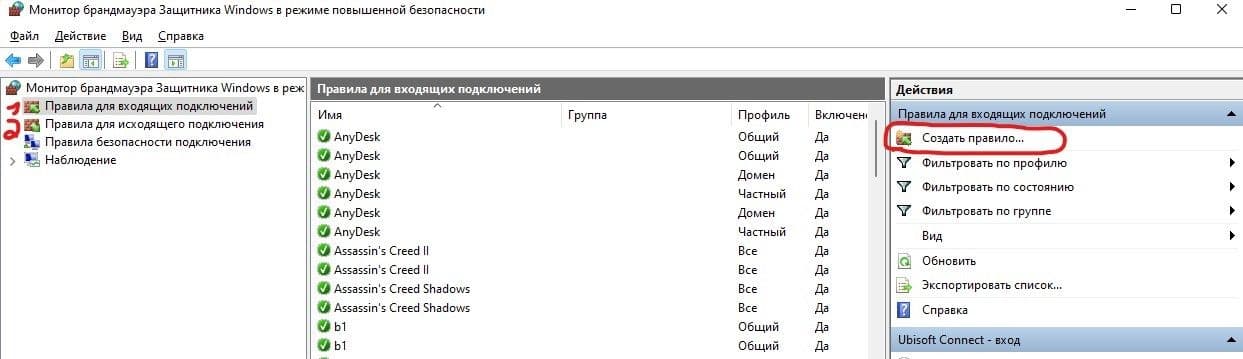
-
Select which networks the rule will apply to. Usually these are "Domain", "Private", and "Public".
-
Name the rule. Give the new rule a name, for example "Block Ubisoft Connect", and click "Finish".
As a result, you should see a screen like this, but it may not appear right away. If you did everything correctly, proceed to the next steps.
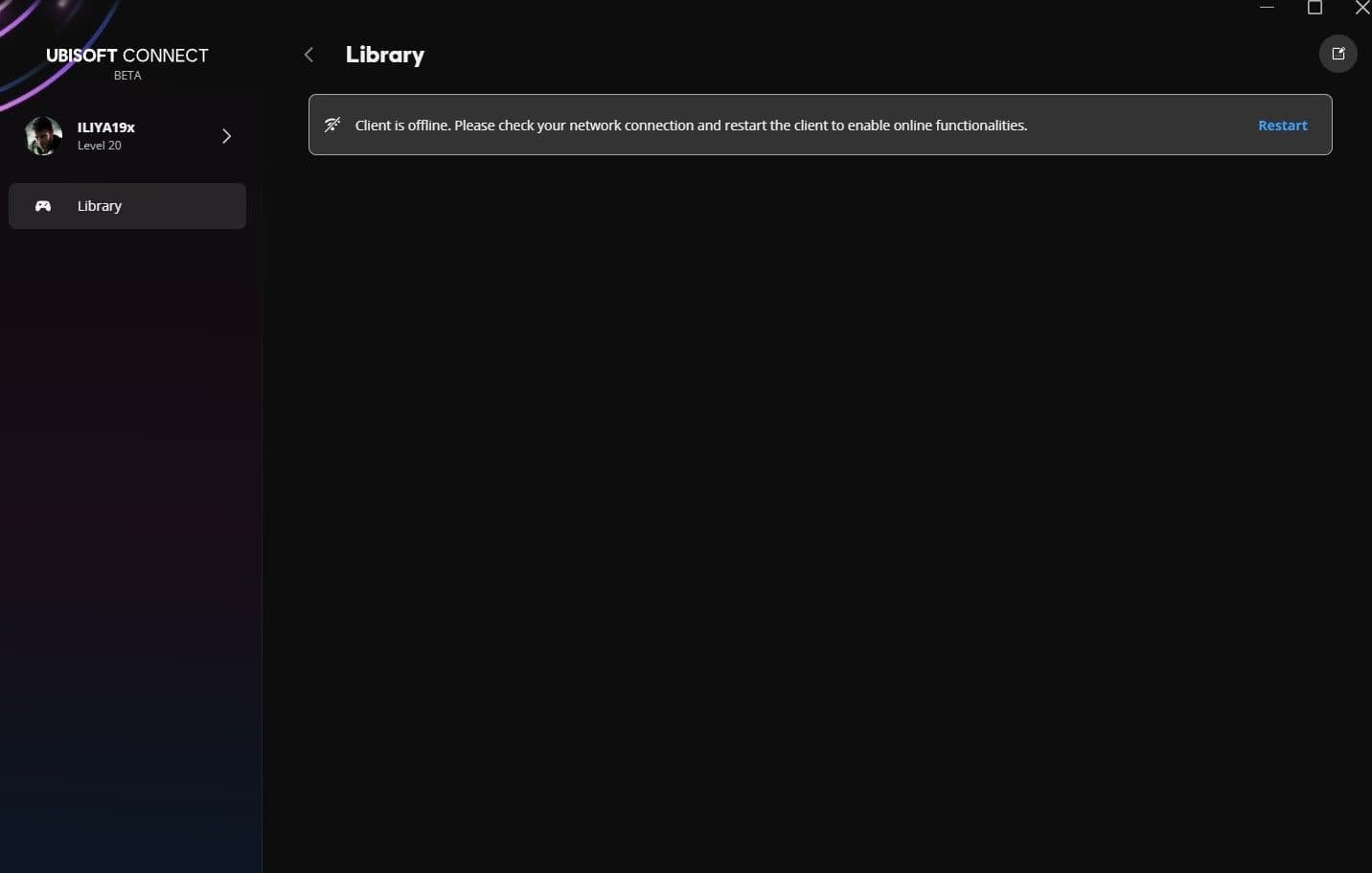
✅ 13 - Launch the game
Open Steam, which you previously switched to offline mode and minimized, and launch the game.
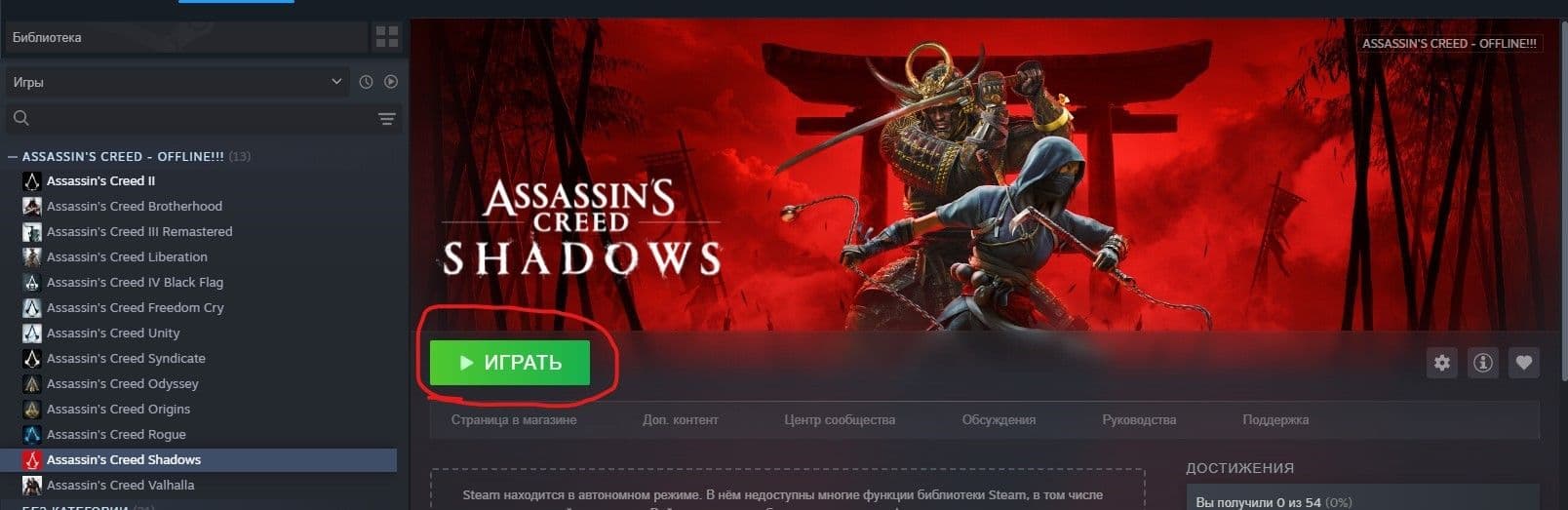
An error window will appear (see screenshot). Click "Skip".
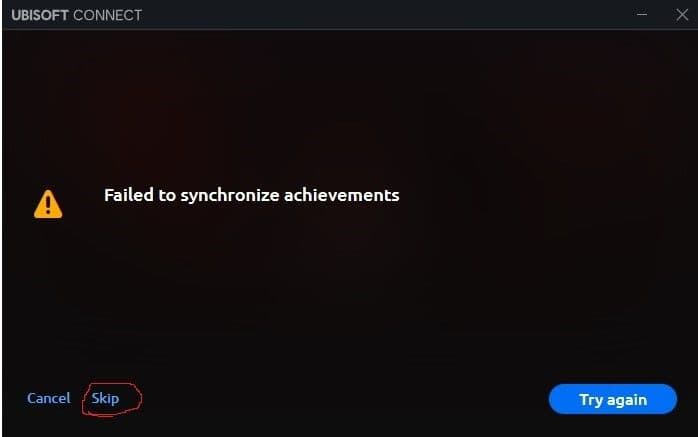
⚠️ Extremely Important !!!
Keep Steam in offline mode permanently. Otherwise, you may lose the activation.
Do not sign out of the Ubisoft launcher; leave it minimized.
After you finish playing, do not shut down your PC; put it into sleep mode instead. Otherwise, there is a high chance the activation will be lost and you will have to do everything again.
Do not log in to the account in online mode after activation: the activation may be lost.
⭐ Enjoy the game ⭐
FAQ
What is offline activation?
Offline activation means you get access to a Steam account with a licensed game at a reduced price: you receive an account with a pre-purchased game, install it using the official Steam client, and then—just in a couple of clicks—switch Steam to offline mode and play. Your game saves remain on your computer, you can always return to your game, update it if needed, freely switch between accounts, and log out completely from the given account whenever you need it.
What is the Gamer's Galaxy Subscription?
It's access to a vast catalog of licensed Steam games available on our website! The catalog is regularly updated with new releases.
Where can I get the account login code?
The one-time login code is available in the account details section next to your username and password. Click the "Get Code" button to receive it.
Will my personal account get banned?
No, your personal account will not be linked to any offline accounts you purchase from us., so there is no risk that your personal account can be banned anyhow. Besides this all accounts on our website belong to us, all games are purchased by us, and we provide a 5-year guarantee for any account.
Are there any regional restrictions?
No, our accounts have no regional restrictions, and you can play from anywhere in the world.
Can I continue to use my personal account?
Yes, you can use multiple accounts at the same time and freely switch between your own and purchased accounts.
Can I play the purchased game from my own account?
No, when you purchase offline activation, you can only play using the provided account.
What is the difference between a subscription and purchasing an offline account from you?
When you purchase an offline account, you get the game forever—it remains in your purchases section with up-to-date data, and will be available even years later. A subscription, on the other hand, gives you access to the entire game library on the site, including new releases. You can play any available games without restrictions, but after the subscription period ends, access to the accounts is revoked.
Is it safe to pay by card on Gamer's Galaxy?
Yes, the site uses secure SSL encryption, so your payment is absolutely safe. You can also pay via the Fast Payment System (SBP) without entering your card details.
Is online play available?
Yes, online play is available on all accounts, but due to shared use, we cannot guarantee stable online access. If another user logs in while you’re online, you may be disconnected from the game. For rental accounts, this limitation does not apply—you are the only user and can play online without issues.
What is 3 / 7 / 14-day rental?
A 3 / 7 / 14-day rental is temporary access to an account. Unlike purchasing an offline account, during the rental period you are the only user of the account and can freely play online
Can I change the account details?
No, you cannot change the details on the purchased account. Any attempt to change the information is prohibited and may result in the loss of access to the account.
What is a Steam Gift?
A Steam Gift is a digital copy of a game sent to a recipient through Steam’s gifting system. Once accepted, the game is added to the recipient’s Steam library. It is not a Steam key, access to another person’s account, or a Steam Wallet top-up.
How can I buy a Steam game as a gift?
Choose a game and edition, check the available regions, and enter the recipient’s Steam profile details. Complete the payment and follow the order instructions to receive and accept the gift. You can buy a Steam Gift for your own account or send it to a friend.
How will my Steam Gift be delivered?
The delivery method and estimated processing time are shown on the product and order pages. After payment, follow the provided instructions and accept the gift in Steam. Once accepted, the game will appear in the recipient’s library.
Why do I need to check the Steam account region?
Steam Gifts may have regional restrictions. The gift region must be compatible with the recipient’s Steam Store country; otherwise, the gift may not be accepted. You can check the store country in the Steam account details.
What is the difference between a Steam Gift, a key, and a gift card?
A Steam Gift is a specific game sent directly to a recipient. A Steam key is a code that must be activated manually, while a Steam gift card adds funds to a Steam Wallet without including a particular game. This page offers games delivered as Steam Gifts.
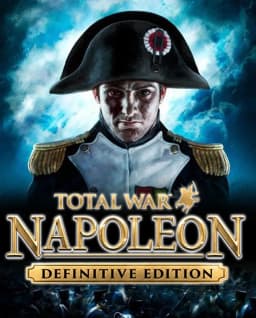
Total War NAPOLEON - Definitive Edition
349,00 ₽

Half-Life Complete
49,00 ₽

We Happy Few
99,00 ₽

Overcooked!
9,00 ₽

Raft
25,00 ₽

Street Fighter 6
249,00 ₽
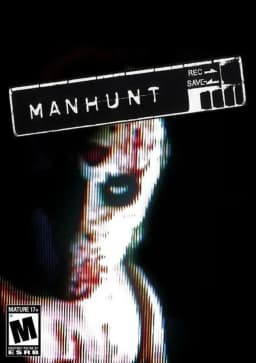
Manhunt
25,00 ₽

A Way Out
49,00 ₽

Crisol: Theater of Idols
59,00 ₽
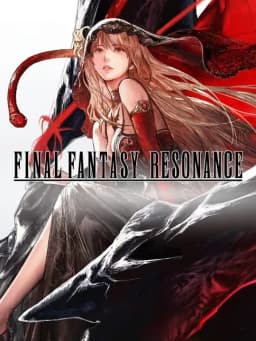
Final Fantasy Resonance
249,00 ₽
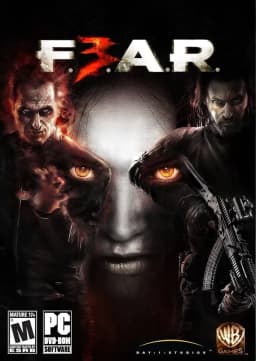
FEAR 3
49,00 ₽

Wreckfest
49,00 ₽

Hellblade: Senua's Sacrifice
149,00 ₽

Rise of the Ronin
149,00 ₽

Sniper Elite 5
99,00 ₽

The Casting of Frank Stone
149,00 ₽

Days Gone
99,00 ₽

Atomic Heart
99,00 ₽

Devil May Cry 5 Deluxe + Vergil
99,00 ₽

Ghost of Tsushima DIRECTOR'S CUT
149,00 ₽


